-
Go to the Manage tab and select your Group from the dropdown.
-
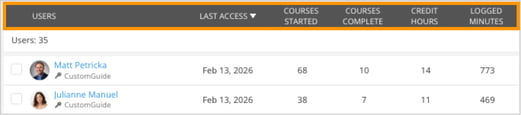
Click the Users tab.
-
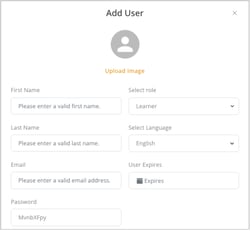
Click Create Users and select Create User to add a new user.

-
Enter the required details:
- First and Last Name
- Email (required)
- Role
- Language
- Expiration (optional)
-
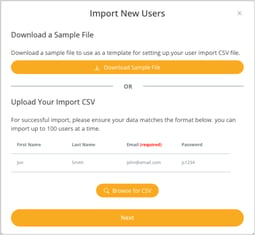
To add multiple users at once, click Create Users and select Import Users.
-
Upload your completed CSV file and click Next.
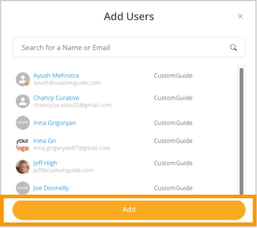
- To add existing users to the group, click Add Users.
- Search by name or email, select the user(s), and click Add.
- To remove a user from the group, locate the user in the list.
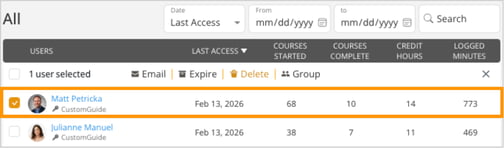
- Click the Delete icon and confirm.
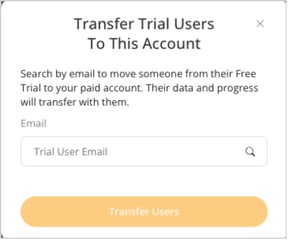
- To transfer a free trial user, click Transfer Trial.
- Enter the trial user’s email and click Transfer Users.
- The user’s data and progress will transfer to your account.
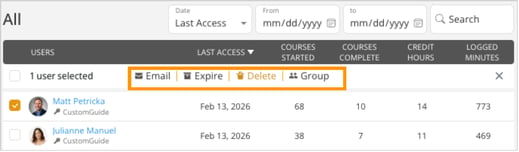
- To manage multiple users at once, check the box next to one or more users.
- Choose an action:
- Email – Send an email to selected users
- Expire – Set or update an expiration date
- Delete – Remove users from the account
- Group – Move users to a different group
- Use the filters at the top to narrow results:
- Date dropdown (Last Access)
- From / To date range
- Search bar to find a user by name