
Keep in mind that you can only customize copied courses. Once copied, follow these steps to edit the course to fit your needs.
-
Edit Course Name
-
Click on the course name to enable editing, then press Enter or click outside the text box to save.
.png?width=525&height=121&name=width_550%20(1).png)
-
-
Change Learning Mode
-
Click the Learning Mode dropdown in the top-right corner. Each mode adjusts the requirements for Pre-Assessment, Lessons, and Post-Assessment.
.png?width=527&height=185&name=width_550%20(2).png)
-
-
Edit and Change Outline
-
Click on any course outline to rename it.
-
Drag and drop outline to rearrange them.
-
To delete, click the trash icon next to any skill or module.

-
-
Add Modules and Skills
-
Scroll to the bottom of the course outline and click Add Module. You can choose to:
- Create a New Module
- Add an Existing Module
- Include content from an Existing Course

-
Inside any module, click Add Skill and choose to:
- Create a New Skill
- Add an Existing Skill

-
-
Add Questions
- Click on any course outline to either delete an existing skill or add a new skill.
- Then, click Add Question to choose a question type, including Multiple Choice, Multiple Response, Matching, or Sequence.

-
Add Lessons
-
Click Add Lesson and select:
- Lesson Builder to create custom content using text, images, media, and activities.
- Existing Lesson if you want to reuse a lesson from another course.
- Video to add a YouTube or Vimeo link, or upload a video file.
- Document to attach additional resources.
- External Link to include links to external websites.

-
-
Course Settings
-
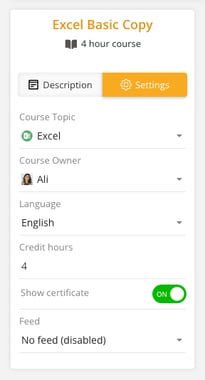
Click on the Settings tab to change the Course Owner, Language, Credit Hours, Feed Settings and Course Slug.
-
-
Change Course Description
-
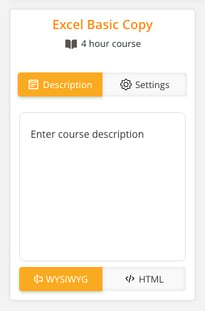
Click the Description tab and enter a brief overview of the course.
-
Use the WYSIWYG editor to format the text or switch to HTML for advanced customization
-
Click anywhere outside the text box to automatically save your changes.
-
-
Change Course Icon and Course Banner
- To change the course icon:
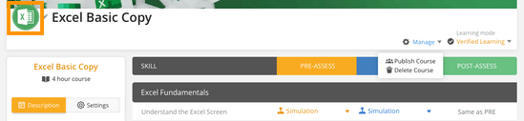
- Click the course icon.
- Select an image from your files and upload it.
-
To change the course cover image:
- Click the Change Image button in the top-right corner of the course banner.
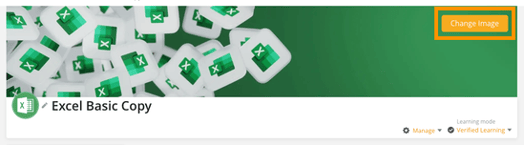
- Click the Change Image button in the top-right corner of the course banner.
-
Choose an image from one of the following options:
- Unsplash: Select a stock image from the integrated Unsplash library.
- Gallery: Pick a color gradient or previously uploaded images.
- Upload: Select and upload a new image from your computer.
-
Click Save to apply the changes. Your new course icon and cover image will now be updated.
- To change the course icon:
- Once customization is complete, you can publish the course or delete it using the dropdown menu in the top-right corner.
