
-
Go to the copied course you created.
-
Note that lessons can only be added after you’ve either added a new skill or replaced an existing one.
-
To replace an existing lesson, first delete the current one from the outline, then click Add Lesson.
-
To create a new skill, click Add Skill, then select Add Lesson.

-
You can choose from different lesson types, including Lesson Builder, Existing Lesson, Video, Document, or External Link.

-
Lesson Builder
-
Use the blank editor to create a custom lesson by adding different content blocks.
-
Click All Blocks to view additional content options.
-
Select the blocks you need, arrange your content, and click Save Lesson when finished.

-
-
Existing Lesson
-
Add a lesson from another course by selecting the Course, Module, and Topic.
-
Click Add Lesson to Course to confirm.

-
-
Video
- Paste a YouTube or Vimeo link, or upload a video file (mp4, ogg, mov, webm, wmv).
- Click Save and Add Video to Lesson.

- Document
- Upload or select a document from your computer and confirm to add it to the lesson.
- External Link
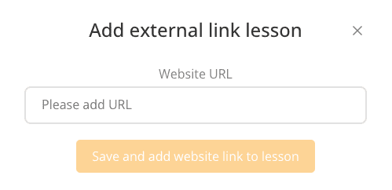
- Enter a URL to link an external resource.
- Click Save and Add Website Link to Lesson.
-