
-
Go to the copied course you created.
-
Note that assessments can only be added after you’ve either added a new skill or replaced an existing one.
-
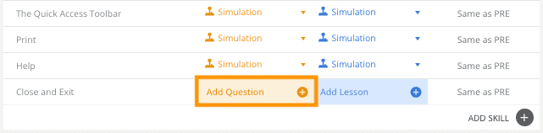
To create a new skill, click Add Skill, then select Add Question.
-
To replace an existing question, first delete the current one from the outline, then click Add Question.
-
-
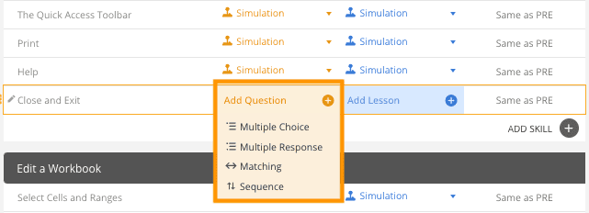
You can choose from the available question types including Multiple Choice, Multiple Response, Matching, or Sequence.
-
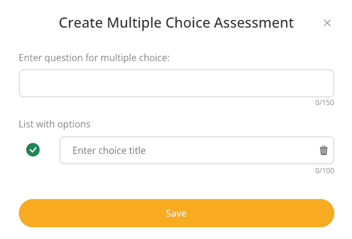
Multiple Choice: Choose one correct answer from multiple options.
-
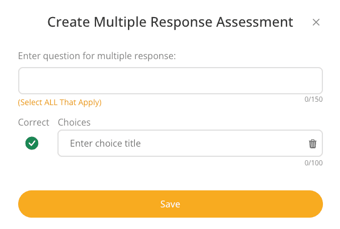
Multiple Response: Select multiple correct answers.
-
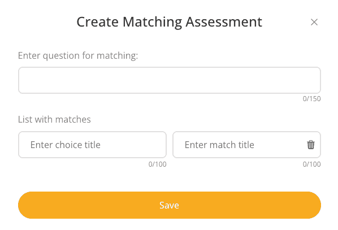
Matching: Match items in one column to corresponding items in another.
-
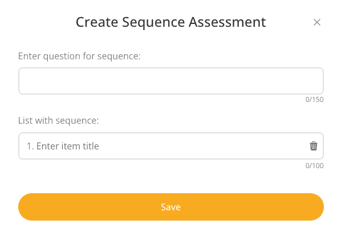
Sequence: Arrange items in the correct order.
-
-
Select the desired assessment type and follow the prompts to enter question details.
-
Once finished, click Save to add the assessment to the module.